Before launching your web app or a feature update, almost everyone checks the basics.
The five you already know about and check
Most launch checklists cover signup, the first thing a new user came to do, payment, invites and permissions, and transactional email such as password reset. They are well documented, and they are the first things a founder clicks through. If you have skipped any of those, start there.
The five flows
These are the ones that rarely make the checklist. They can break without anyone noticing, and could cost you customers.
These flows share two traits:
- Few users touch them, so a failure reaches only a handful of people.
- They are rarely reported. Users close the tab, and you find out weeks later from a number that did not move.
The five flows:
- Cancel, downgrade and delete
- Plan limits and usage caps
- Imports and uploads
- Account and profile settings
- Search and filters
They are listed below in the order worth checking them. Each can look finished on screen while the data underneath is wrong, which is why a quick click-through misses them.
How to check them without a QA person
You do not need QA training for this. Testing a flow means doing what a customer would do, one step at a time, and checking that the right thing happens. Set aside an hour and start here.
Pick the order. Start with the flows where a failure costs the most. Cancel and plan limits come first, because they touch money. Imports come next, because they touch customer data. Settings and search can go last.
Then run each flow three times:
First run, by hand: Go through the flow as a customer would. Write down each step and what you expect to see, for example: “Click Cancel plan. Expect a confirmation message and access until the end of the billing period.” Save the notes. They are your test.
Second run: Follow your notes. It takes about ten minutes, because you no longer have to work out what to do.
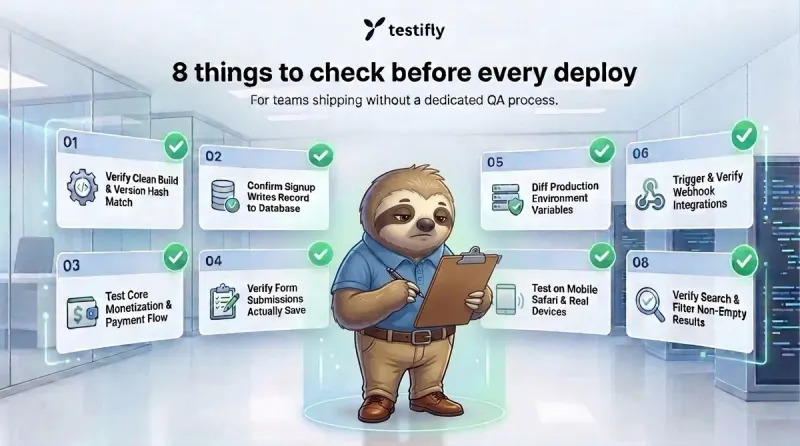
Third run: Anyone on the team can follow the notes, or a script can run them for you. For a shorter list to run before every deploy, see 8 things to check before every deploy when you have no QA process.
Run the list again after changes. Repeat it before any release that touches nearby code. These flows tend to break when something around them changes, not when someone edits them directly.
The five flows, and what to do for each
Each section below ends with a short list of what to do, so you can work through them in order.
Cancel, downgrade and delete
Nobody on the team wants to test leaving, so nobody does. The cost shows up later as a dispute, a support thread or a deletion request.
The billing side is where quiet errors live. Stripe’s documentation warns that updating a subscription with a new price, without naming the existing item, adds a second item so both prices stay active. A downgrade can then leave a customer paying for two plans. The same documentation notes that negative prorations are not automatically refunded, so a mid-month downgrade can leave a credit that nobody has decided how to handle.
Deletion has its own rules. In the EU, Article 17 of the GDPR lets people ask for their personal data to be erased without undue delay when certain grounds apply, so a delete button that only hides the account can become a problem. In the US, the FTC’s 2024 click-to-cancel rule was vacated by the Eighth Circuit, but the Restore Online Shoppers’ Confidence Act still lets the FTC challenge online subscriptions that lack a simple way to cancel. This is background, not legal advice.
What to do:
- Cancel a plan, move to a lower one and delete an account, one at a time.
- After each, confirm that access changes when it should, billing stops or changes, and nothing the customer still needs disappears.
- If you bill through Stripe, open the invoice after a downgrade and look for a second active price or an unexpected credit.
- After a delete, look for the account’s data in your database and email tools, not only on screen.
- Sign up again with the same email address.
Plan limits and usage caps
Founders usually check that a limit blocks. Fewer check where it blocks. A wrong limit costs you in both directions: free users get more than you intended, or a paying customer hits a wall they should not have.
Limits tend to break when a plan changes. Entitlements vendor Stigg describes how checking plan IDs directly in code creates fragile conditionals across services and breaks when plans are versioned or old plans linger. It sells a product for this, so read it as one view. A concrete billing trap comes from Stripe: changing a subscription’s price resets the quantity to 1 unless you pass the existing quantity, so a seat-based plan can quietly drop to one seat.
What to do:
- Confirm the limit fires at the number on your pricing page, not one over or one under.
- Check what counts toward it, including deleted and archived items.
- Read the message the user sees at the limit.
- Upgrade and confirm the limit lifts immediately and that billing shows the same plan.
- Downgrade to a plan below current usage and see what happens to the extra items.
Imports and uploads fail halfway and still say done
The first time a customer sees their own data in your product is usually an import. One that skips rows without saying so is the worst case, because the user trusts the result and builds on it.
Spreadsheets hide most of the damage. A CSV guide on DEV Community lists the usual causes: a stray byte order mark that corrupts the first column name, Excel dropping leading zeros so 07920 becomes 7920, long numbers turned into scientific notation, and some European locales saving semicolon-separated files with a .csv extension. Each one can produce a file that imports without an error and holds the wrong data.
What to do:
- Use a real export from the spreadsheet tools your customers use, not a clean test file.
- Include commas and line breaks inside quoted fields, accented names, a value with a leading zero and a long ID.
- Try a semicolon-separated file as well.
- Compare the number of rows in the file with the records in the account, then spot-check five values.
- Check that the user is told what was skipped and why.
Account and profile settings
A settings form can show a saved message and write nothing. Nobody reports it, because the user assumes they made a mistake and changes the setting again, or gives up.
Changing an email address is the riskiest case. OWASP’s guidance describes a staged flow: re-authenticate the user, hold the new address as pending, send a notice to the current address and a time-limited confirmation to the new one, then switch and sign the user out. That is several steps, and each one can fail without an error, such as an email that never sends or a link that expires too early.
What to do:
- Change an email address, a name and a notification preference.
- Reload the page, then log out and back in.
- Confirm the current address gets a notice, the new address gets a confirmation link, and the link works once and then expires.
- After confirming, check which address receives mail and that older sessions are signed out.
- Turn a notification off and confirm the email actually stops.
Search and filters
An empty search page reads as an empty product. The customer concludes their data is gone.
One cause is timing. In Elasticsearch, for example, a new document becomes searchable within about a second, and by default an index refreshes automatically only if it was searched in the last 30 seconds. Whatever search you use, find out how long it waits. Another cause is weak handling of mistakes. Baymard, which tests ecommerce sites, reported in 2021 that 69% did not offer relevant suggestions for closely misspelled terms. That figure comes from online stores, but the habit it describes, testing only the perfect query, applies to any product with search.
What to do:
- Search for a record you created five minutes ago, not the seed data.
- Try a word with a typo, one with an accent or an apostrophe, and one that should return nothing.
- Read what the empty-results page tells the user to do next.
- Combine two filters and check the count.
How Testifly can help
Everything above takes time and focus. An hour of checking is realistic once. Repeating it before every release, as the list grows past five flows, is not, because on a small team the person checking is also the person building. The flows that slip first are the ones nobody complains about.
An autonomous QA solution takes that repetition off your plate, so it no longer depends on anyone’s spare energy. Testifly automates testing across the flows in your web app. You give it a URL, it finds the flows that exist, builds checks for them and runs them on every deploy. There are no test cases to write and no selectors to maintain.
The five flows above are examples of a bigger category: failures that raise no error and that nobody reports. The next one will probably sit in a flow that is not on any list yet. Here is how Testifly applies to them:
- It finds flows you did not list. Discovery starts from the web app itself, not from someone’s memory. Account settings, billing and search screens are candidates like any other, alongside signup and payment. If it cannot log into a flow, it reports that flow by name instead of skipping it.
- It runs on every deploy. These flows tend to break when something nearby changes, so a check that runs once before launch misses the failure that ships with a later release. It can also run on a schedule between releases.
- It keeps up when the product changes. Self-healing tests adapt when your interface changes, so a renamed button does not turn into a pile of broken checks to repair by hand.
- It explains what went wrong. When a flow breaks, Testifly returns a root-cause analysis and a session video. You can see the first step that went wrong without clicking through the flow yourself.
Testifly shows you what happened. It does not decide whether a result is acceptable, so calls about billing, permissions and releases stay with you, with the evidence in front of you.